
Appearance
A Filament page builder with live preview and revisions
If you want a Filament page builder that non-developers can use to assemble public pages, FilamentCraft adds a full visual editor to the panel you already have. Your users pick sections from a catalog, edit them in a sidebar, and watch an iframe preview of the real page update as they type, with drafts, revisions, undo and a separate publish step behind it.
This post walks through the editor as a whole: what lands in your panel, how the preview stays in sync without reloading, how saving and publishing are split, and the install steps from the docs.
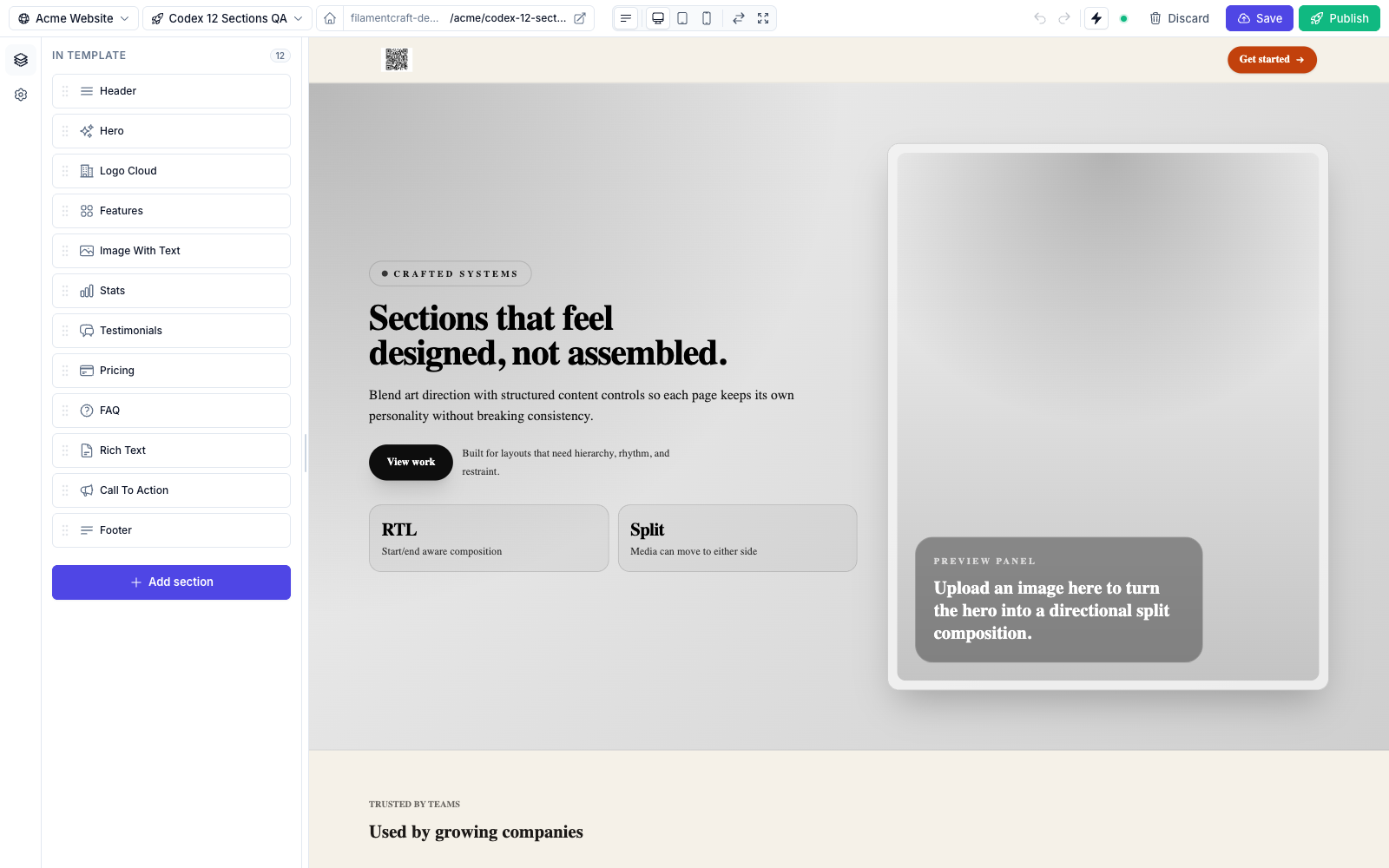
What the Filament page builder adds to your panel
Registering the plugin gives the panel one new sidebar entry, Website builder. Once the resolved site has a homepage, that entry opens the editor on it directly. Until then it lands on a dashboard listing the site's pages. The editor itself is a record-scoped page at filamentcraft/editor/{template}, so it never shows up in navigation on its own.
That single entry is a deliberate default. Most apps want their users editing pages, not administering the tables behind them. If you need the raw Filament resources for an internal admin, showAdvancedResources() adds Stores, Pages and Designs to the sidebar. The records stay tenant-scoped either way; the flag only controls navigation.
The data model is small:
| Concept | What it is |
|---|---|
| Site | A buildable website. Belongs to an owner model and points at a Theme. |
| Theme | A PHP class that declares the settings panel your end users see. |
| Template | A page within a Site, with a status and a type. |
| Template revision | An immutable snapshot of a template's sections. |
| Region | Shared header, footer and announcement areas around every page. |
| Section | A reusable block with a settings schema and a Blade view. |
Sites belong to any host model through a polymorphic owner, which is how the same editor works for a single company site or for a SaaS where every workspace builds its own. The current site resolves against Filament's tenant automatically.
The editor layout
The editor has three parts: a slim icon rail, a left sidebar, and the iframe preview. The sidebar swaps between the page's sections, the settings for the selected section, and the site's media library, so the preview keeps the full width whichever one is open. Header and footer regions are pinned above and below the section list and open the same editor scoped to that region.
The topbar holds the page and site dropdowns, a Settings slide-over for creating, renaming, duplicating and deleting pages without leaving the editor, a command palette on ⌘K, a URL pill with a "set as homepage" toggle, and a device switcher for desktop, tablet and mobile. Device widths come from filamentcraft.editor.devices, so you can point them at your own breakpoints.

Sections can also be managed on the canvas. Hovering a section in the preview draws an outline and a floating toolbar with edit, move up, move down, duplicate, hide and delete. A section wrapped with data-fc-section-locked exposes only its name and the edit button, which is useful for a header you don't want an editor to delete by accident.
Sections and presets
A page is an ordered list of section instances, each with its own settings, blocks and color scheme. FilamentCraft ships 32 built-in sections: 25 content sections (Header, Hero, Features, Pricing, FAQ, Gallery, Timeline, Countdown, Locations and more) plus a 7-section commerce pack whose content comes from your product catalog through the Storefront contract.
The add-section modal opens from the rail or the / shortcut. When a section type ships presets, the modal hands off to a preset picker, and one click drops in a fully designed variant. Built-in sections ship one preset per family (Modern, Editorial, Bold, Elegant), and the same picker can restyle an existing section in place.
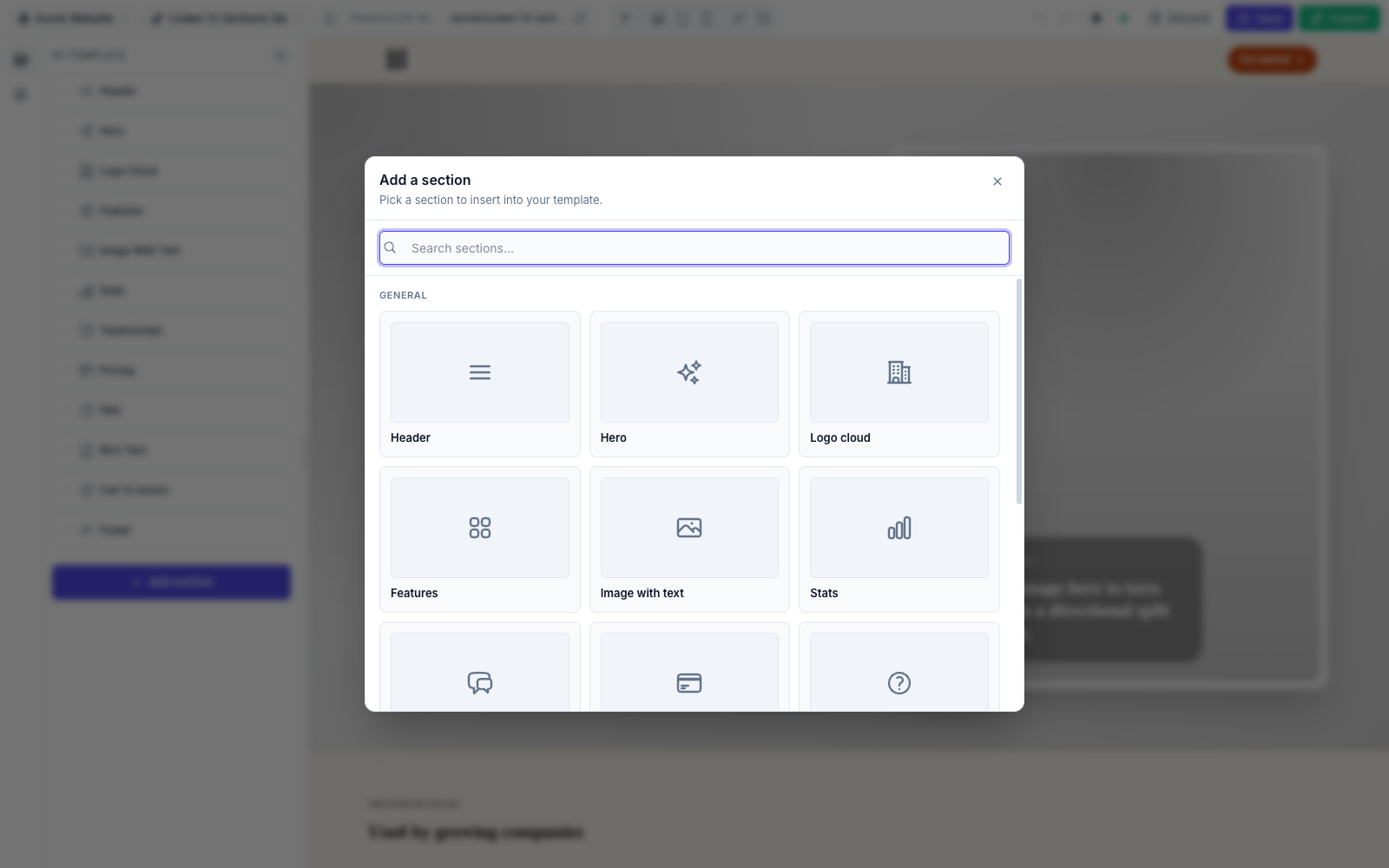
Your own sections are a PHP class plus a Blade view. This is the example from the sections guide:
php
namespace App\Sections;

use FilamentCraft\Sections\BladeSection;
use FilamentCraft\Settings\Types\Text;
use FilamentCraft\Settings\Types\Textarea;

final class TestimonialSection extends BladeSection
{
    protected static string $view = 'sections.testimonial';

    public static function slug(): string { return 'testimonial'; }
    public static function name(): string { return 'Testimonial'; }

    public static function settings(): array
    {
        return [
            Textarea::make('quote')->label('Quote')->required(),
            Text::make('author')->label('Author')->required(),
        ];
    }

    public static function defaults(): array
    {
        return ['settings' => ['author' => 'Customer Name'], 'blocks' => []];
    }
}
Register it with ->registerSection(\App\Sections\TestimonialSection::class) on the plugin, or drop it in app/Sections/ for auto-discovery. To turn off every built-in, call ->withBuiltinSections(false).
How the live iframe preview works
The preview is an iframe of the real page rendered from the server's draft state, and edits refresh the affected section rather than reloading the frame. The parent editor and the iframe talk over a postMessage bus.
A section setting change takes one of two paths depending on the field. Elements marked with data-fc-live get a surgical in-place patch. Everything else goes through a sectionRefresh: a single GET with a sectionId parameter, served by SectionRefreshController, that re-renders and swaps just that section. Global theme settings such as the color scheme or font request a full templateRefresh, then morph <body> and re-sync the <style id="fc-tokens"> block in <head>. The live preview guide has the full table.
Typing would be expensive if every keystroke hit the server, so live setting edits commit behind a 400 ms debounce. That debounce created a bug worth describing: a click that navigated away (switching locale, page or site) inside the 400 ms window would drop the pending edit. The fix is a capture-phase pointerdown listener that flushes every pending commit before the click's own handler runs:
ts
document.addEventListener('input', handleLiveInput, true);
document.addEventListener('pointerdown', flushPendingServerCommits, true);
Selecting a section scrolls the preview to it, and that also needed care. A scroll request fired right after adding or duplicating a section can arrive before the iframe has rendered the new section. So the parent retries every 150 ms, up to 40 attempts, until the iframe answers with found: true. The iframe also skips the scroll when the target already sits in the upper half of the viewport, so clicking a section inside the preview does not yank the page. The editor internals page documents this protocol and the Livewire rebind logic.
In a store, the preview's links are live too. Clicking a product card switches the editor to the page that holds the Product Detail section and previews that exact product. On the published site the same links stay ordinary links.
Drafts, revisions and undo
Editing, saving and publishing are three separate states. While you edit, the working copy lives in a per-user draft in the cache (DraftStore, kept for 8 hours), so a page refresh doesn't lose work. Clicking Save writes a template_revision row. Publish promotes the head revision to the public one, and Discard rolls back to the published state.
The templates table carries two pointers, head_revision_id and published_revision_id. That split is what lets someone save ten drafts over a week while visitors keep seeing the last published version. Revisions are immutable snapshots, so promoting one is a pointer move, not a copy.
Undo and redo use a ring buffer per user per template, 50 steps by default through filamentcraft.editor.undo_depth, also cache-persisted for 8 hours. The shortcuts are ⌘Z and ⌘⇧Z, with ⌘S to save and ⌘⇧P to publish.
Autosave is a per-user, per-template toggle in the topbar. In the current source it defaults to off, so edits don't trigger background saves nobody asked for, and a choice to turn it on is remembered for 30 days. When it is on, the draft saves after the filamentcraft.editor.autosave_ms debounce, which defaults to 3000 ms in config/filamentcraft.php.
php
'editor' => [
    'enabled' => env('FILAMENTCRAFT_EDITOR_ENABLED', true),
    'autosave_ms' => 3000,
    'undo_depth' => 50,
    // devices, control_size ...
],
Header and footer regions are the exception to the revision model. Regions are unversioned, so saving one writes straight to the region and flushes the site cache.
Installing the page builder
Installation is a private Composer registry plus one install command. The username is the email you bought with and the password is your license key:
bash
composer config repositories.filamentcraft composer https://packages.filamentcraft.dev
composer config http-basic.packages.filamentcraft.dev your@email.com your-license-key
composer require filamentcraft/filamentcraft
php artisan filamentcraft:install
filamentcraft:install publishes the config and migrations and runs them behind a confirm prompt, registers the editor assets through filament:assets, creates the storage symlink for image uploads, syncs registered themes, and prints the panel provider to edit. It also seeds a published example site with a header, footer, and seven-section home page; pass --no-example to start empty.
Then register the plugin on the panel that should host the editor:
php
use Filament\Panel;
use FilamentCraft\FilamentCraftPlugin;

public function panel(Panel $panel): Panel
{
    return $panel
        ->id('admin')
        ->plugin(FilamentCraftPlugin::make());
}
To restrict the builder to some users, pass a closure to canAccessUsing(). When it returns false, the builder leaves navigation and its routes return 403, so a blocked user has no URL to hit directly. For a fuller first site, php artisan filamentcraft:starter --family=editorial provisions header and footer regions and a seven-section home page in one of the four preset families. When something looks wrong after an install or upgrade, php artisan filamentcraft:doctor checks migrations, theme sync, assets and panel wiring and prints a fix under each failure.
The installation guide has the full list of plugin options, and the editor guide covers every topbar control. To click through the editor before installing anything, open the live demo.