
Appearance
Media Library
The media library keeps each site's uploaded images in one searchable place. Open it from an image field when you are choosing a picture, or use the Media gallery tab in the editor rail when you want to manage the whole collection.
Library entries are site-scoped. An operator working on one store cannot browse or modify media belonging to another store, even when both stores have the same owner.
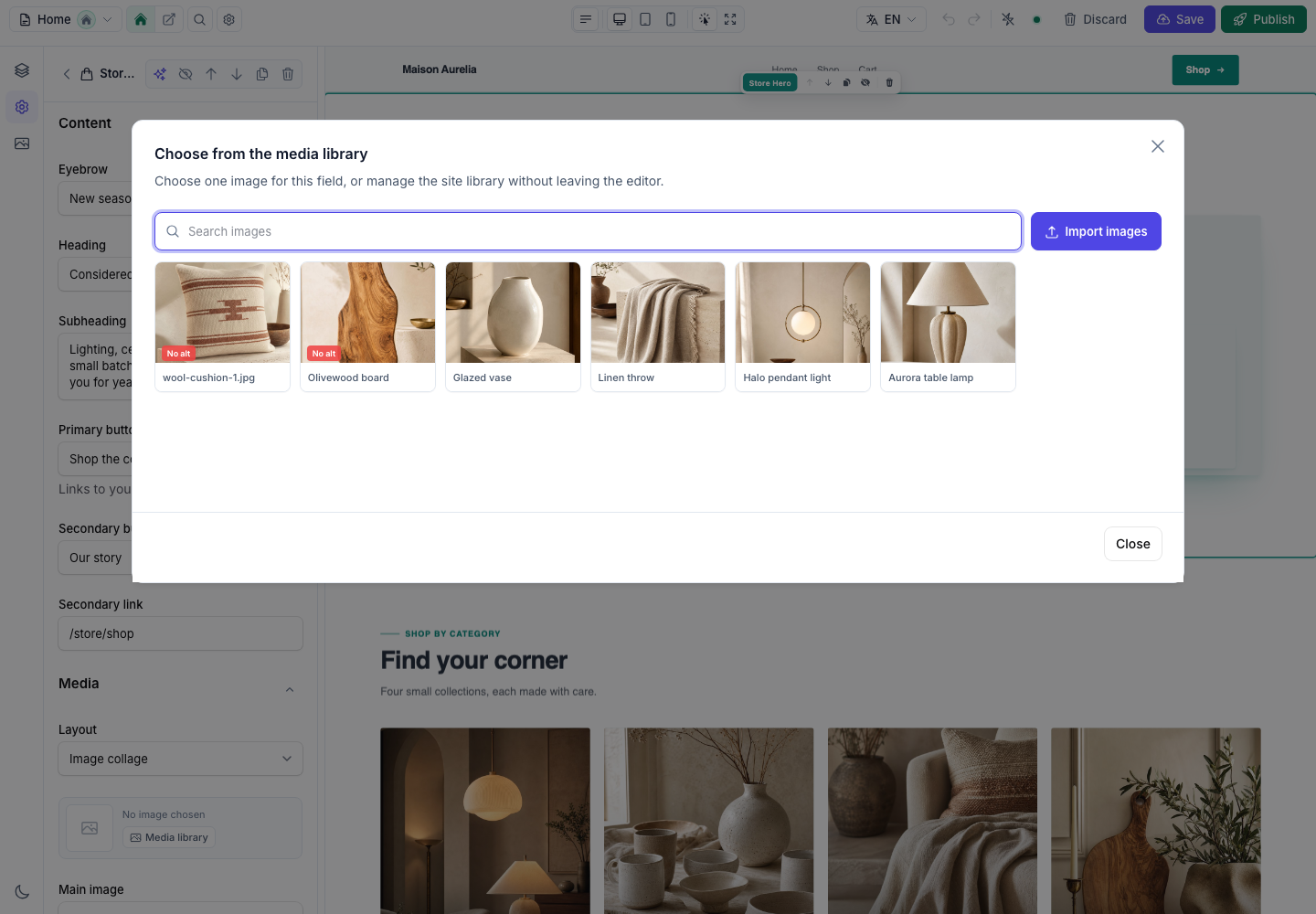
Choose or import an image
Every Image setting has a Media library action next to its upload control.
- Open Media library on the image field you want to fill.
- Search by title, file name, or alternative text if the collection is large.
- Click an image to place it in the field, or choose Import images to add one or more files without closing the picker.
Imported files use the current image field's disk, directory, accepted MIME types, size limit, and visibility. A successful import adds the files to the site library immediately; the picker remains open so you can review them before choosing one.
If the field's placement-specific alternative text is empty, choosing an image copies the library entry's default alternative text into it. Existing placement text is never overwritten.
Select and manage several images
Hover an image to reveal selection, edit, and delete controls. The same controls appear when a card receives keyboard focus and remain visible on touch devices.
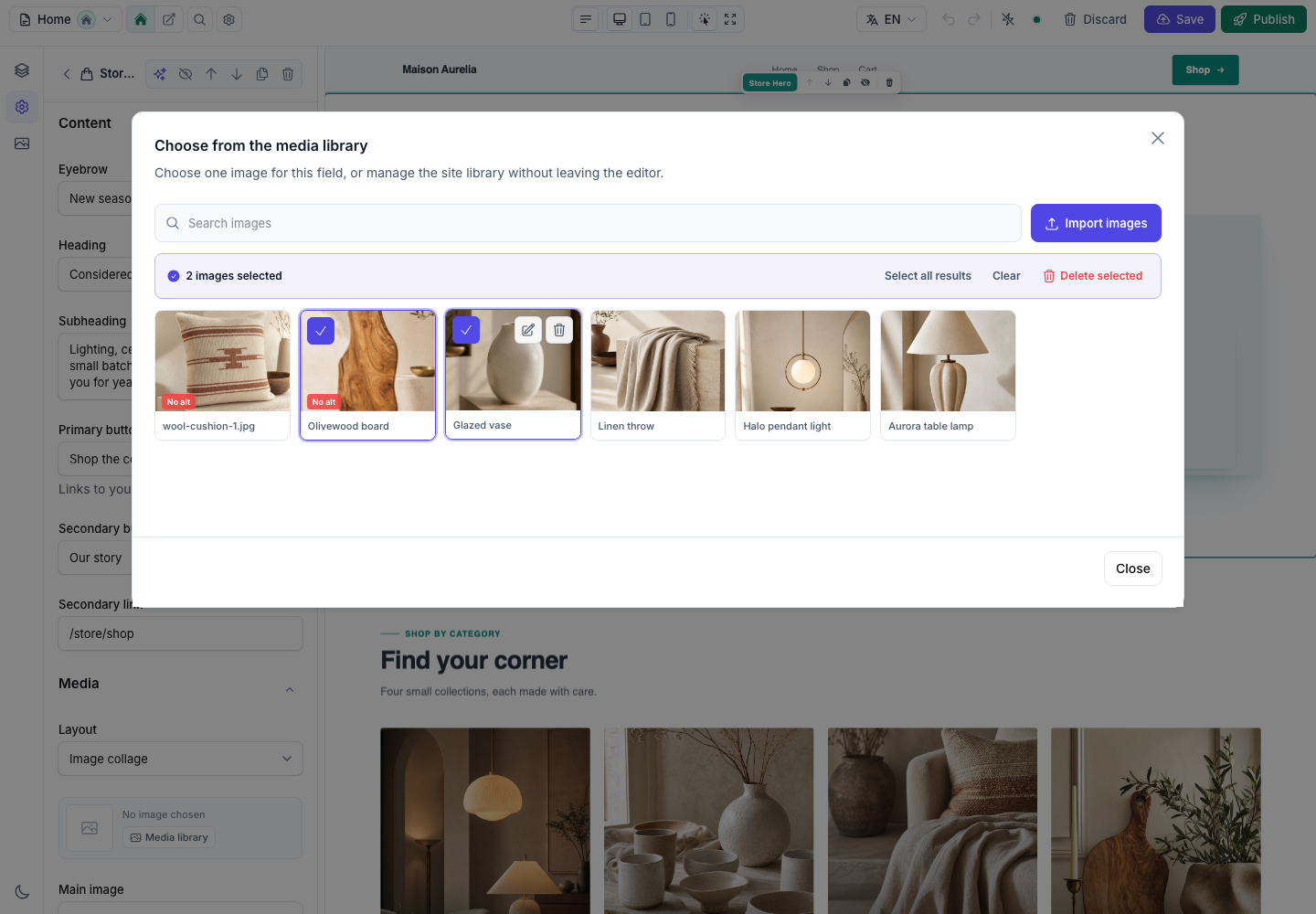
After the first selection, the action bar shows the exact count and offers:
- Select all results — selects the images in the current search result.
- Clear — leaves the library unchanged and exits selection mode.
- Delete selected — opens a confirmation before any files are removed.
The confirmation reports how many selected images are still referenced. Usage includes saved template revisions, site regions, and the unsaved draft currently open in the editor. Deleting does not rewrite those stored references, so treat an in-use warning as a prompt to replace the image at each placement first.
Edit image details
Use the pencil action to edit an image without leaving the picker. The detail panel shows a larger preview, pixel dimensions, and file size alongside the fields that authors need.
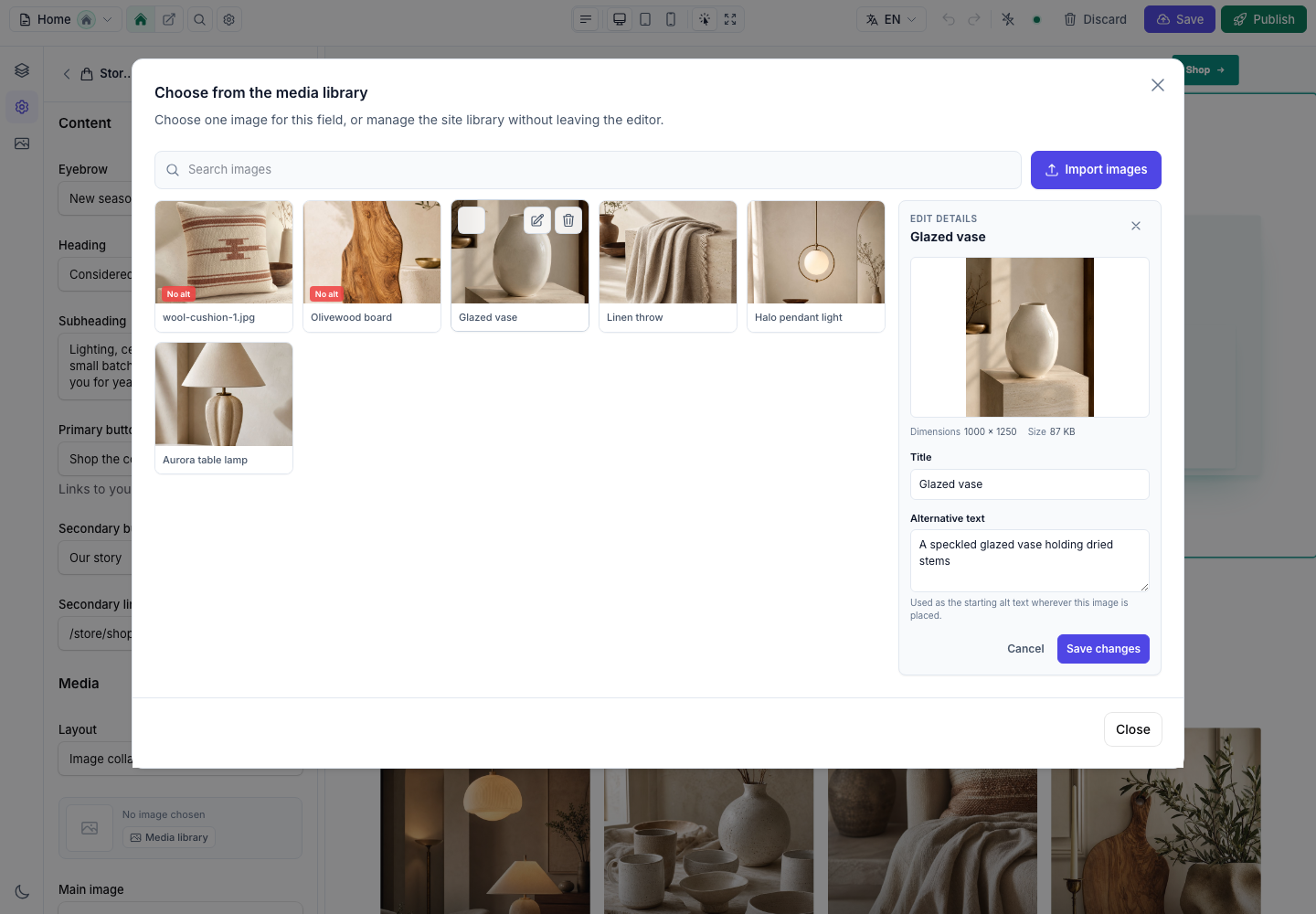
- Title is the human-readable library label. When it is empty, the original file name is shown instead.
- Alternative text is the reusable default for new placements. The red No alt marker identifies entries that still need one.
Alternative text should describe the image's purpose in context, not repeat the file name. Because the library value is only a starting point, the same photo can have different text in a hero, product card, or editorial section. Decorative images should use an Image setting with alternative text disabled and render with decorative instead.
Work from the full gallery
Open Media gallery from the editor's icon rail to manage images independently of a specific field. The gallery provides upload, search, metadata editing, selection, bulk deletion, and the same usage-aware warnings as the picker.
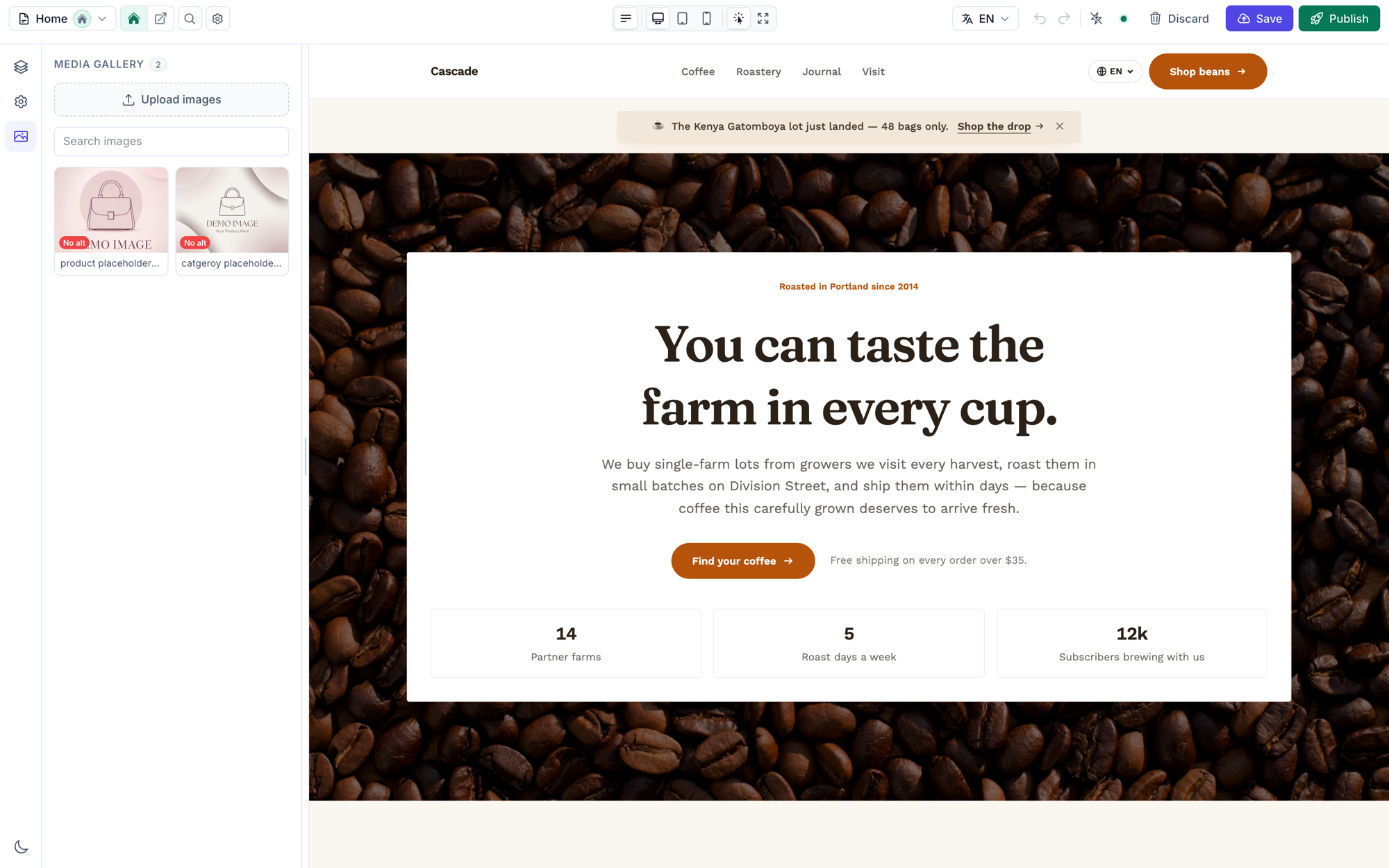
Uploads made through section fields are registered automatically, so the gallery grows as the site is built. Editing an existing upload through Filament's crop and rotation tools repoints the same library entry to the edited file; it does not create a duplicate row.
Sites created before the media library
Run php artisan filamentcraft:media-sync once after upgrading. It scans existing section content and registers local images without changing the templates that use them. Add --site=ID to limit the scan to one site.
For section authors
The media library is wired into every FilamentCraft Image setting. Configure accepted formats, maximum size, storage disk, directory, visibility, and image-editor options on the setting itself; the picker uses those rules when importing for that field.
External URLs and absolute paths are not registered because the library does not own those files. Local uploads are deduplicated by site and storage path, so reusing one image across several sections still produces one library entry.