
Appearance
Theme Presets
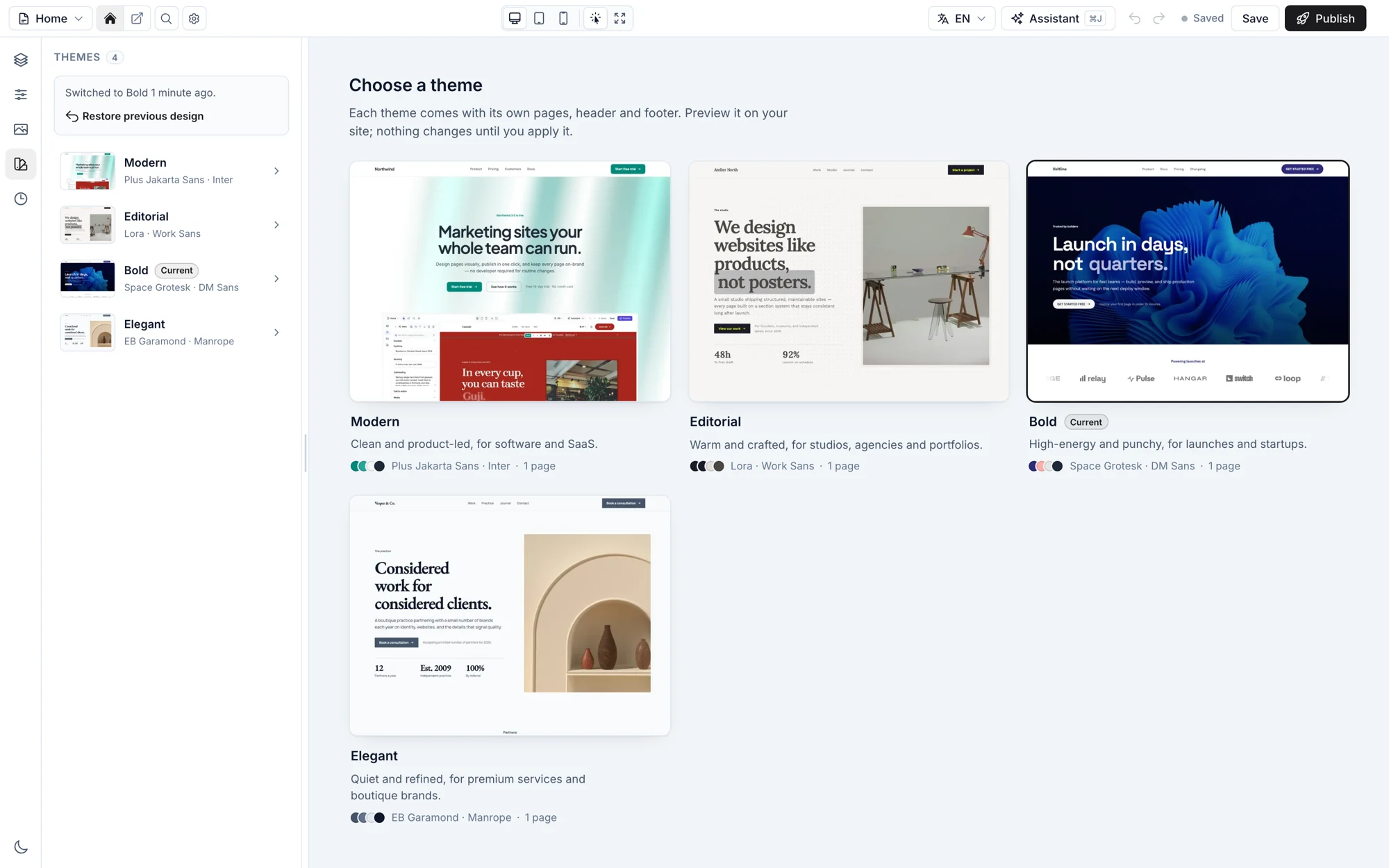
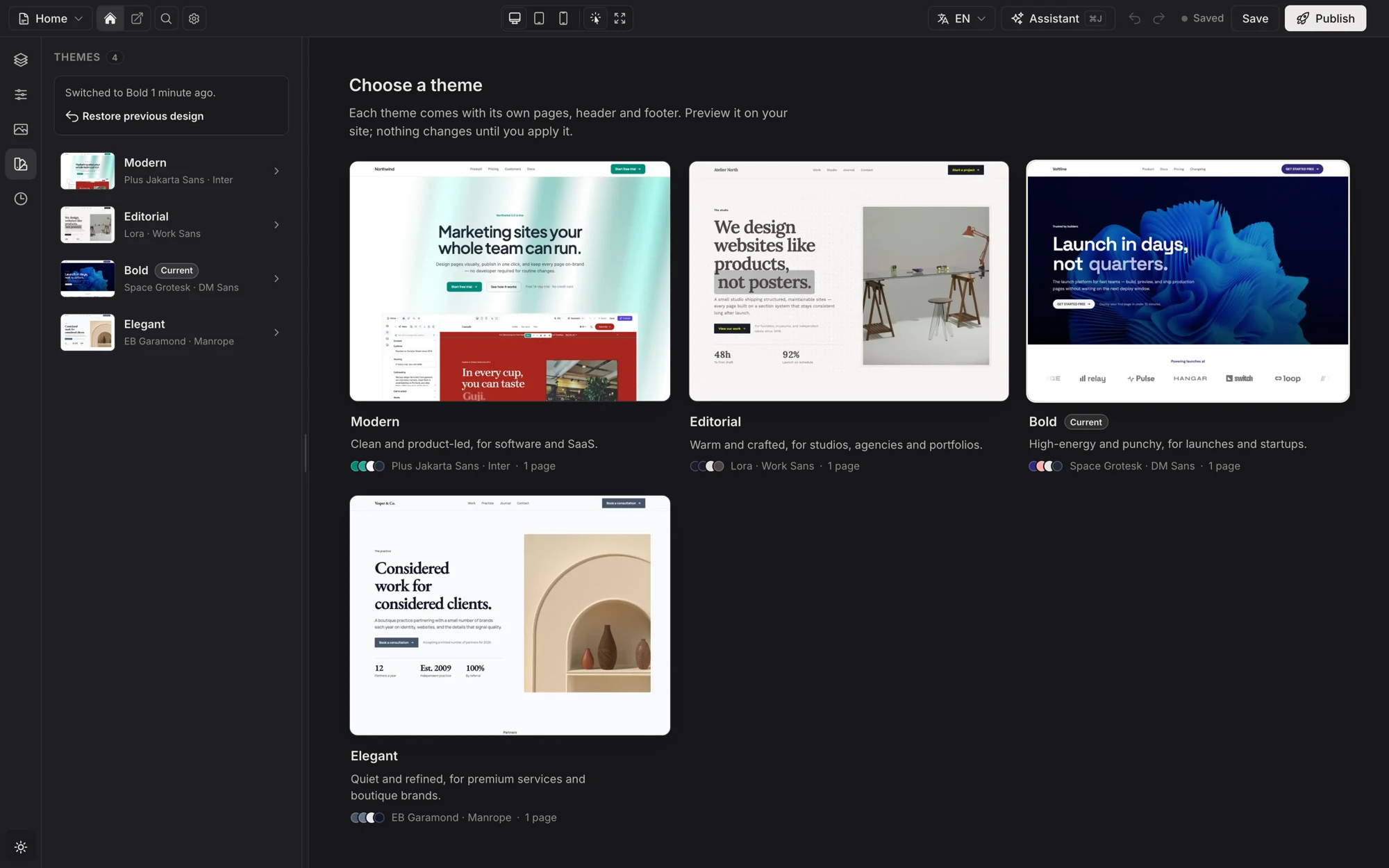
A theme preset is a ready-made site look: colors, fonts and button shape, plus the pages, header and footer that go with them. Operators pick one from the Themes panel in the editor, preview it on their own site, and apply it in one click. Every switch can be undone.
FilamentCraft ships four presets: Modern, Editorial, Bold and Elegant. Register your own next to them, or replace them.
Upgrading from 1.40 or earlier
Applying a preset records a restore point in the filamentcraft_site_snapshots table. Run php artisan filamentcraft:upgrade to publish and run the migration. Until you do, the Themes panel shows the command and Apply stays disabled.
How operators use it
- Open Themes from the editor rail, the settings panel, the settings menu or the command palette (
⌘K→ Themes). The canvas turns into a theme library: a grid of screenshots, each panning down its full page on hover. - Click a theme. The canvas shows the site with that preset, rendered in memory. Nothing is saved. Step through themes with the arrows in the bar (or
←→), and go back with All themes orEsc.
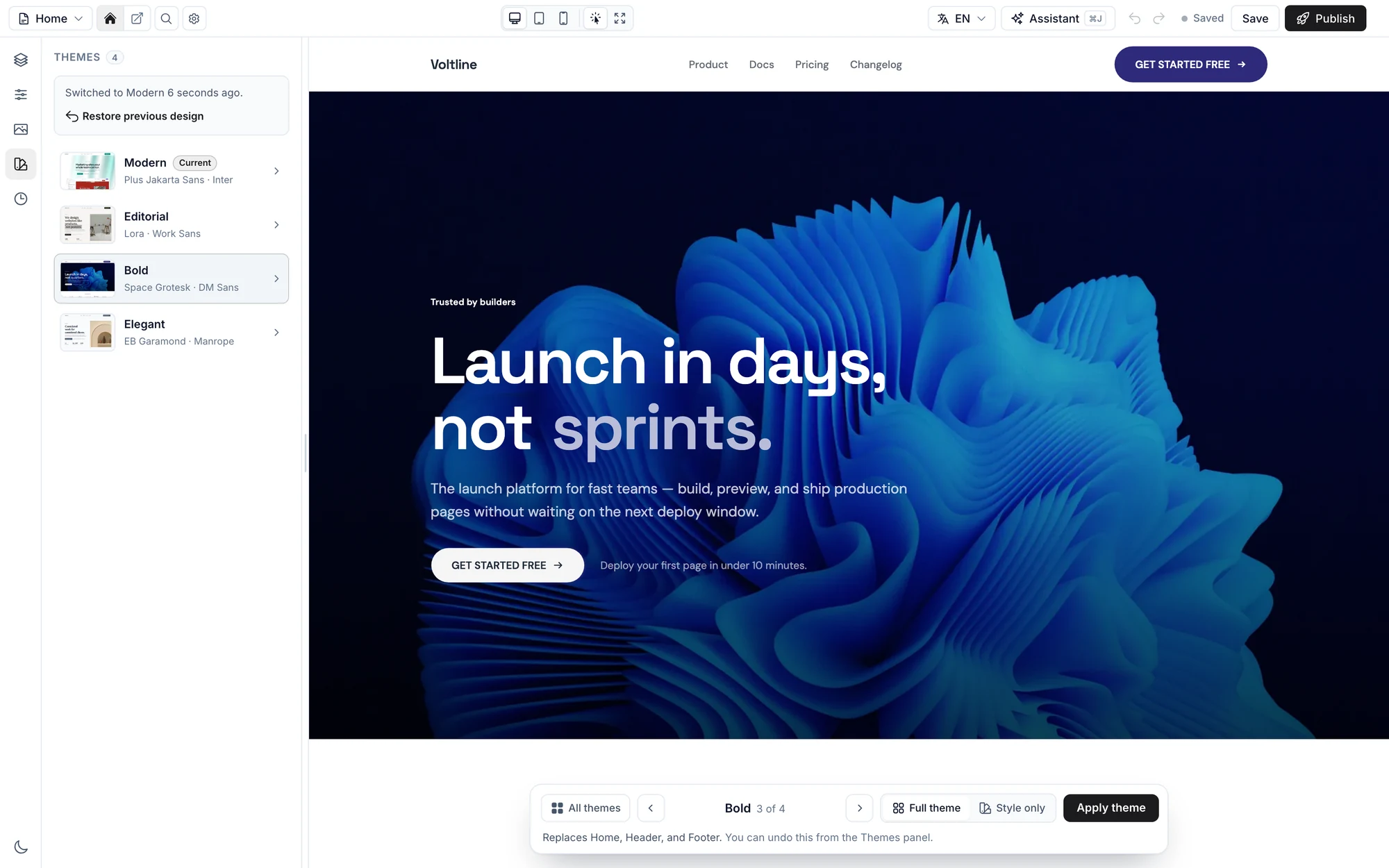
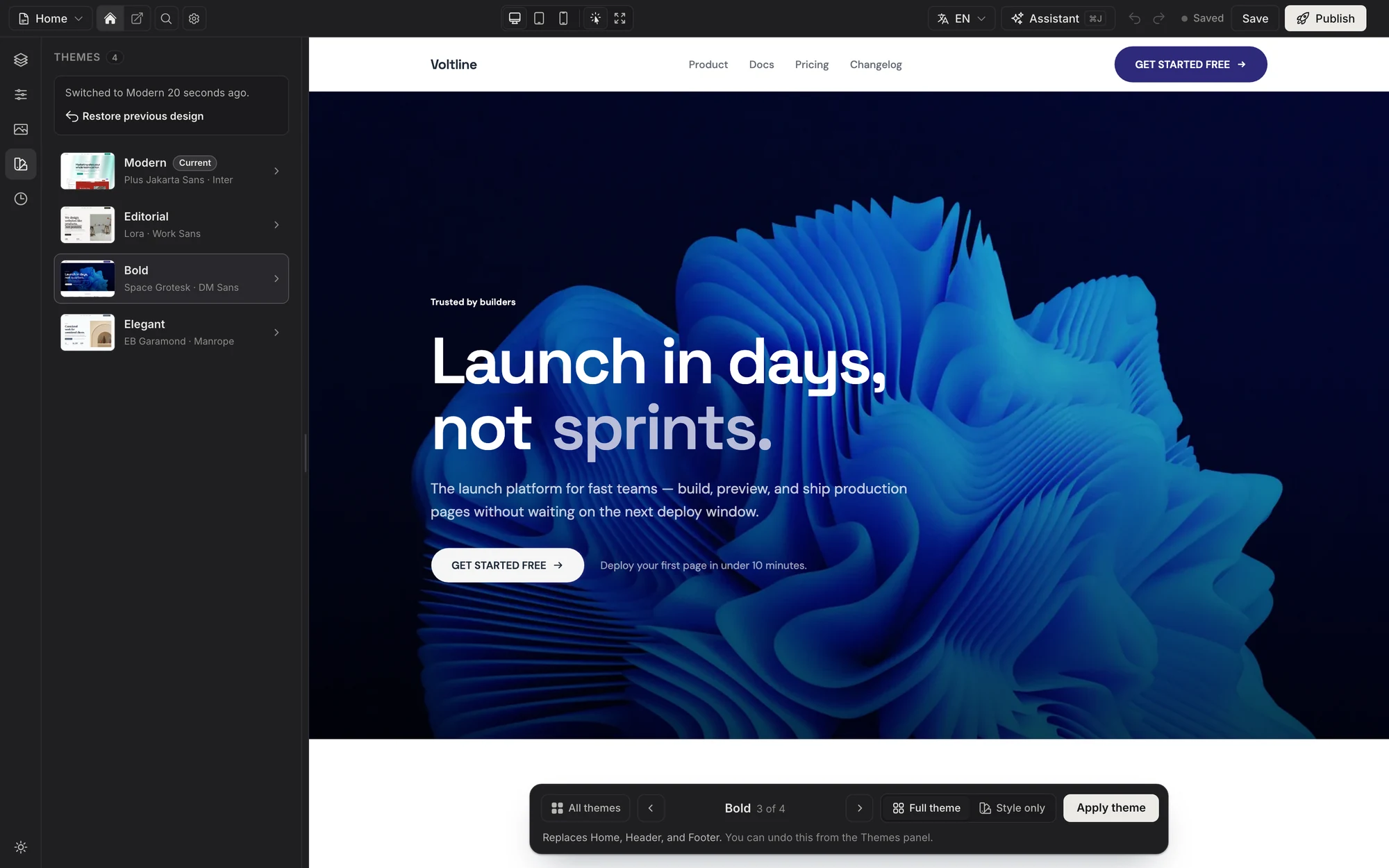
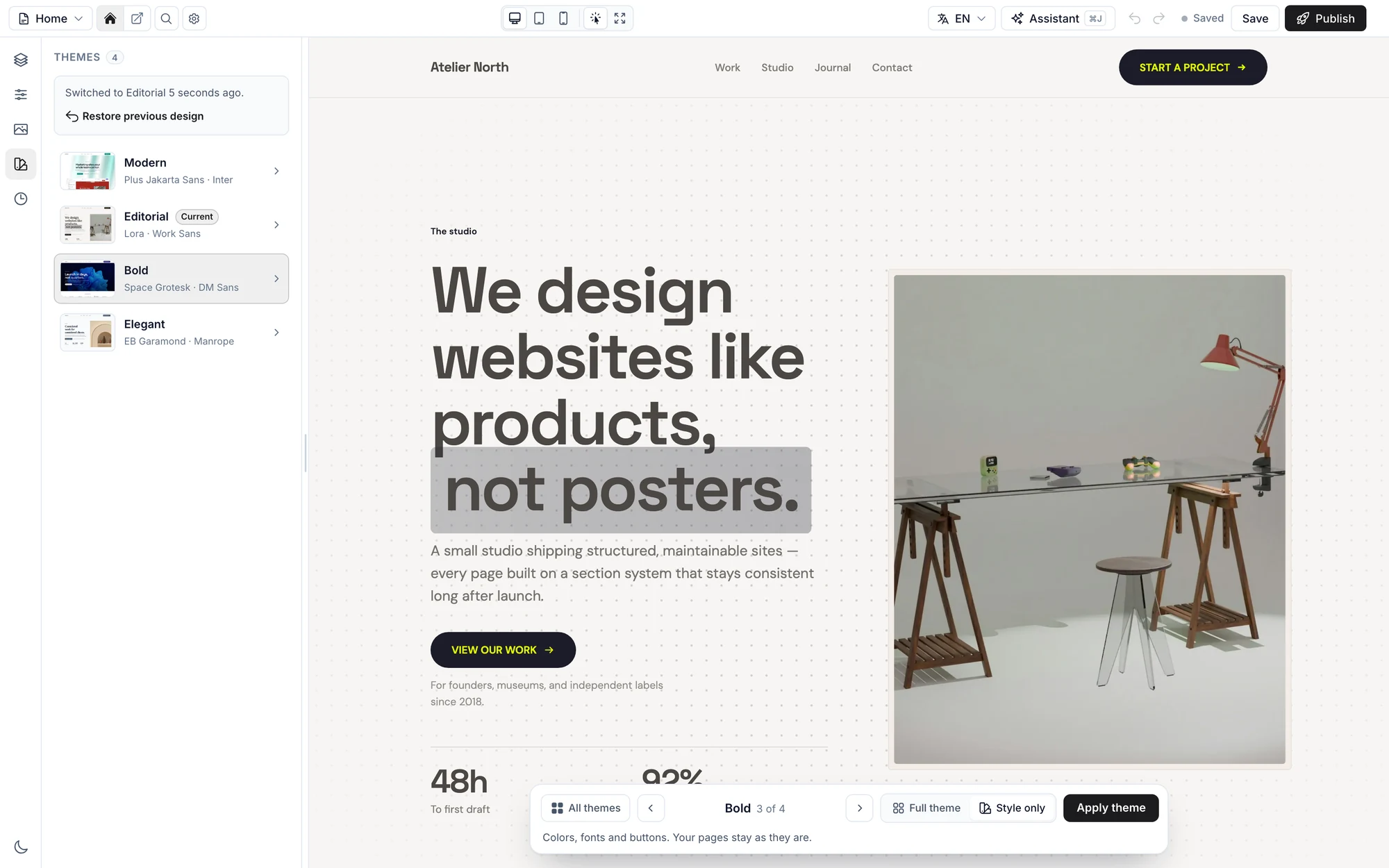
- Choose what to apply in the bar under the canvas:
- Full theme (default): the style, plus the preset's header, footer and pages. The bar lists exactly which pages and regions it replaces or adds.
- Style only: colors, fonts and buttons. Pages stay as they are.
- Click Apply theme. The editor reloads on the new look and offers Undo. If the apply would discard unsaved changes on the open page, the button asks you to confirm first.
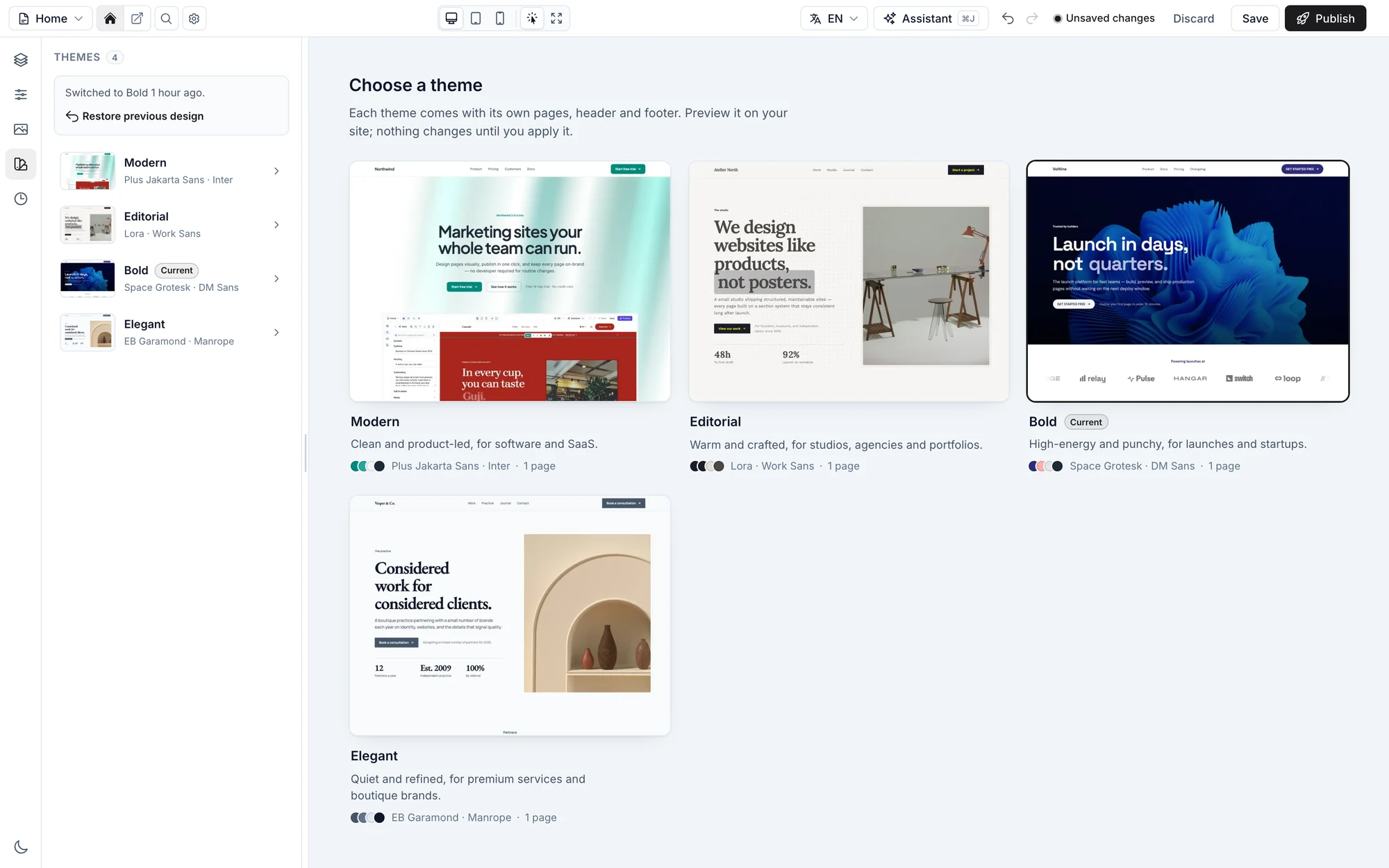
Restore previous design stays in the Themes panel until the next switch. FilamentCraft keeps the last ten restore points per site.
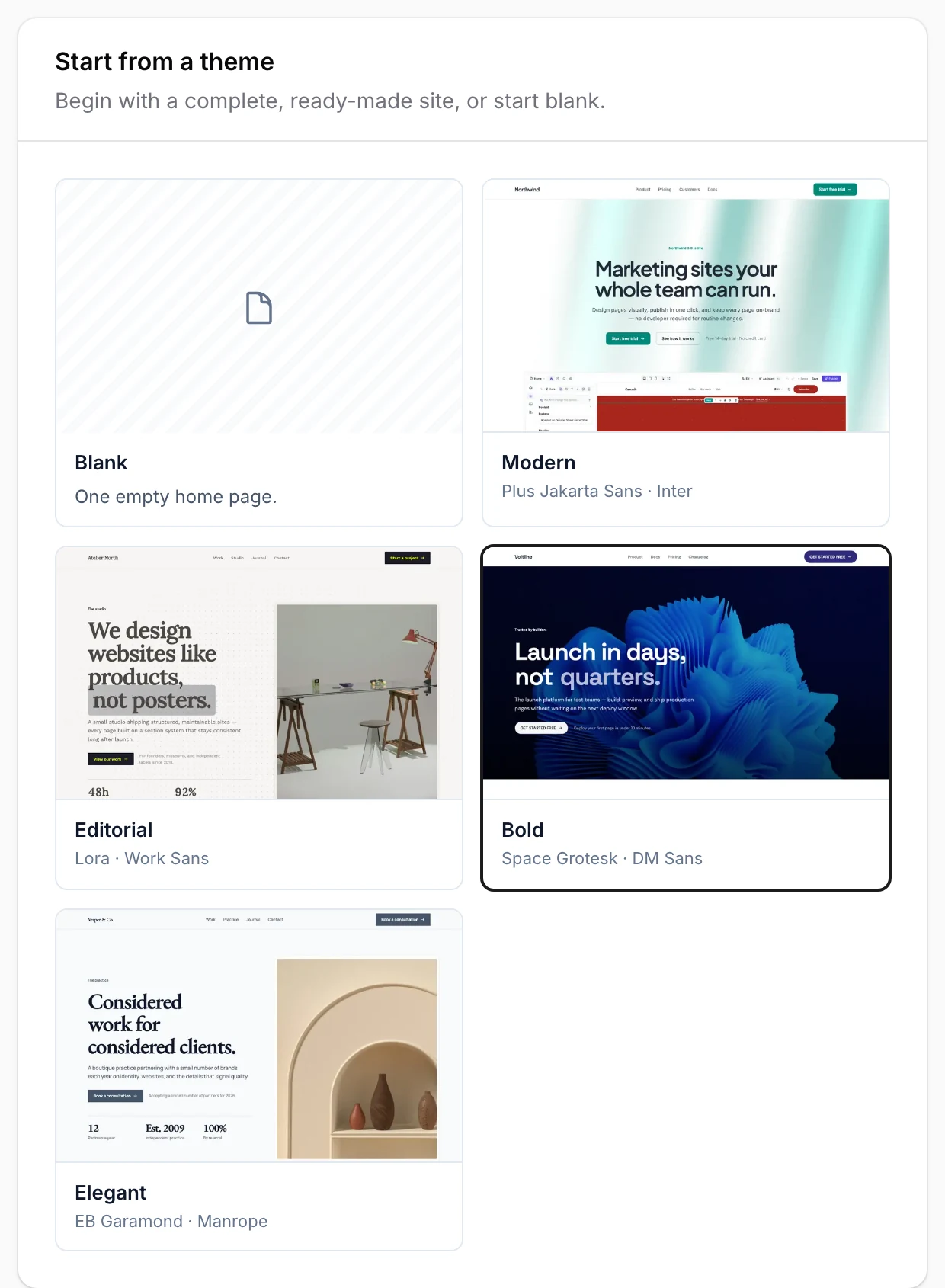
Creating a site, from the editor's New store dialog or the Sites resource, starts with a Start from picker: Blank, or any preset.
What Full theme replaces
| Site has | Full theme does |
|---|---|
| A page seeded from the same page blueprint, or with the same slug | Adds a new revision with the preset's sections. A published page stays published. |
| A homepage, when the preset's page is a homepage | Replaces that page. |
| No matching page | Creates it (published when the site is live). |
| Other pages | Leaves them alone. |
| Header / footer | Replaces the regions the preset declares. Others stay. |
Old revisions are never deleted. Undo moves the page pointers back and restores the region content and site settings exactly.
What Style only changes
Every theme setting resets to its default, then the preset's values land, so leftovers from the previous look never bleed through. SEO settings, AI settings and the site's own color schemes are kept.
Build a theme in two minutes
The fastest path: design the site in the editor, then export it.
bash
php artisan make:filamentcraft-theme-preset Harbor --from-site=harbor-demoThis writes app/Themes/Presets/HarborPreset.php with the site's design (style()), every page and its sections, and the header and footer, all as readable PHP you can edit. Classes in app/Themes/Presets are discovered automatically, so the theme shows up in the Themes panel right away. Leave out --from-site to start from a small working starter instead, or pass --from-site with no value to pick a site from a list.
The export keeps only the settings that differ from each section's defaults, so the file stays short. Sections built with the no-code section builder live in the database, not in classes, so they are skipped with a warning.
Write a preset
Extend ThemePreset. Declare pages inline with PresetPage, so the whole theme lives in one file. It is also a site blueprint: page blueprint classes work in pages() too, and the same class can provision a new tenant's site (HarborPreset::provision($tenant)).
php
use FilamentCraft\Blueprints\BlueprintRegion;
use FilamentCraft\Blueprints\BlueprintSection;
use FilamentCraft\Enums\RegionName;
use FilamentCraft\Sections\Builtin\CtaSection;
use FilamentCraft\Sections\Builtin\FooterSection;
use FilamentCraft\Sections\Builtin\HeaderSection;
use FilamentCraft\Sections\Builtin\HeroSection;
use FilamentCraft\Theming\Presets\PresetPage;
use FilamentCraft\Theming\Presets\ThemePreset;

final class HarborPreset extends ThemePreset
{
    public function slug(): string
    {
        return 'harbor';
    }

    public function name(): string
    {
        return 'Harbor';
    }

    public function description(): ?string
    {
        return 'Calm and coastal, for hospitality brands.';
    }

    public function screenshots(): array
    {
        return ['images/themes/harbor/home.webp'];
    }

    public function style(): array
    {
        return [
            'color_scheme' => 'harbor',
            'schemes' => [
                'harbor' => ['background' => '#f4f7f8', 'on-background' => '#0f2a33', 'primary' => '#0e6e7e', 'on-primary' => '#ffffff'],
            ],
            'heading_font' => 'lora',
            'default_font' => 'work-sans',
            'button_radius' => 6,
        ];
    }

    public function pages(): array
    {
        return [
            PresetPage::make('Home')->homepage()->withSections([
                BlueprintSection::make(HeroSection::class)->settings(['heading' => 'Stay by the water']),
                BlueprintSection::fromPreset(CtaSection::class, 'elegant'),
            ]),
            PresetPage::make('Rooms')->withSections([/* ... */]),
        ];
    }

    public function regions(): array
    {
        return [
            BlueprintRegion::make(RegionName::Header)->sections([BlueprintSection::make(HeaderSection::class)]),
            BlueprintRegion::make(RegionName::Footer)->sections([BlueprintSection::make(FooterSection::class)]),
        ];
    }
}
PresetPage::make($name, $slug = null) takes ->homepage(), ->withSections([...]), ->ofType(TemplateType::Landing) and ->seal() (hides Add section on that page).
style() is keyed like Site.settings_json:
color_scheme: the site-wide scheme slug.schemes: schemes the preset authors,slug => tokens. They are added to the site's own. A scheme can list only some of the 22 tokens, likeharborabove: the rest come through the CSS cascade from themoderntokens on:root(or an enclosing section's scheme).- Any setting id from the theme's
settingsSchema(), such asheading_fontorbutton_radius. Ids the site's theme doesn't declare are ignored, so one preset works across themes.
Override themeSlug() to switch the site to a specific theme as well. By default the site keeps the theme it has.
Screenshots
Give the library real pictures of the theme with screenshots(). The first one is the cover; extra ones get thumbnails under the card. Full-page captures work best, since the cover pans down them on hover.
php
public function screenshots(): array
{
    return [
        'images/themes/harbor/home.webp',      // under public/
        'images/themes/harbor/about.webp',
        'https://cdn.example.com/harbor-shop.webp',
    ];
}
Paths resolve through asset(); absolute and root-relative URLs pass through. Returning a single previewImage() works too. A preset without screenshots gets a generated specimen: a headline in its heading font, body text, a button and four swatches. The built-in presets ship their own screenshots.
Register presets
Presets in app/Themes/Presets register themselves. Anywhere else, register them on the plugin or in config:
php
FilamentCraftPlugin::make()
    ->themePresets([HarborPreset::class])
    ->discoverThemePresetsIn(base_path('themes'))
    ->withoutBuiltinThemePresets(); // optional: hide Modern, Editorial, Bold, Elegant
php
// config/filamentcraft.php
'themes' => [
    'presets' => [App\Themes\Presets\HarborPreset::class],
    'preset_paths' => [base_path('themes')],
    'builtin_presets' => true,
],
A host preset with a built-in's slug (modern, editorial, bold, elegant) replaces it. With no presets registered, the Themes panel is hidden and the old Change theme dropdown comes back.
Check and test presets
php artisan filamentcraft:doctor checks every host preset and warns about a slug that isn't kebab-case, a themeSlug() that isn't registered, an unknown color scheme or font, two pages with the same slug, more than one homepage, a pages() that throws, and screenshots missing from public/.
Run the same checks in your test suite, plus a real render of every page:
php
use FilamentCraft\Testing\ThemePresetTester;

it('ships a working Harbor theme', function () {
    ThemePresetTester::for(HarborPreset::class)
        ->assertValid()    // the doctor checks above
        ->assertRenders(); // provisions a site and renders every page
});
->site() hands you the provisioned site for your own assertions.
Brand Kit
A preset that breaks the panel's Brand Kit is shown disabled, with the reason on the card: a font outside the allow-list, a scheme the kit hides, or authored colors outside a locked palette. The server applies the same check, so a blocked preset can't be applied by calling the component directly.
Apply presets in code
php
use FilamentCraft\Enums\ThemeApplyMode;
use FilamentCraft\Theming\Presets\ThemePresetApplier;
use FilamentCraft\Theming\Presets\ThemePresetRegistry;

$preset = app(ThemePresetRegistry::class)->find('editorial');
$result = app(ThemePresetApplier::class)->apply($site, $preset, ThemeApplyMode::Full);

app(ThemePresetApplier::class)->restore($result->snapshot); // undo
React to an apply or undo
FilamentCraft\Events\ThemePresetApplied (site, preset, mode, result) fires after a preset is applied, and ThemePresetRestored (site, snapshot) after an undo. Both wait for the surrounding database transaction to commit — including one your panel action opened — and are dropped if it rolls back. The page cache is cleared after your listeners run, so pages they rewrite show up straight away. A queued listener (ShouldQueue) runs later, on the worker, so clear the cache yourself when it changes pages: app(\FilamentCraft\Rendering\FragmentCacheStore::class)->flush($event->site->getKey()).
php
Event::listen(ThemePresetApplied::class, function (ThemePresetApplied $event): void {
    app(AcademyWebsite::class)->syncAfterTheme($event->site);
});
Presets and their pages can also implement BindsToSite and LocalizedBlueprint (Seeding & Blueprints).